MS Code Lab
Pilot

Computer science courses that are ready to teach

Seven courses for grades 6 to 8 that feel like a game, built by a middle school computer science teacher. Students learn to think, read code and fix it: the fundamentals that matter more now that AI writes so much of it.

One platform, seven courses

Each course is a full unit with its own lessons, checks, projects and game. They share one teacher account, one way for students to sign in, and the same teacher tools. Use one or all of them.

Open now

Pixel Trail's journey map: a blocky landscape with mountains behind it. Four cobbled roads climb terraces, pass castles, cottages and cave mouths, and meet at a river with boats on it. Small student characters stand at their lesson stops.
In pilot

Pixel Trail

Game programming in JavaScript

Students write real code in p5.js and end up with a video game that is all theirs. They choose a road by interest: platformer, adventure, arcade shooter, or a game that uses machine learning. The roads meet again at shared lessons, so the class stays together.

Grades
7 to 8
Students write
JavaScript
Lessons
52, with 15 on each student's path
You need
A Chromebook or any browser
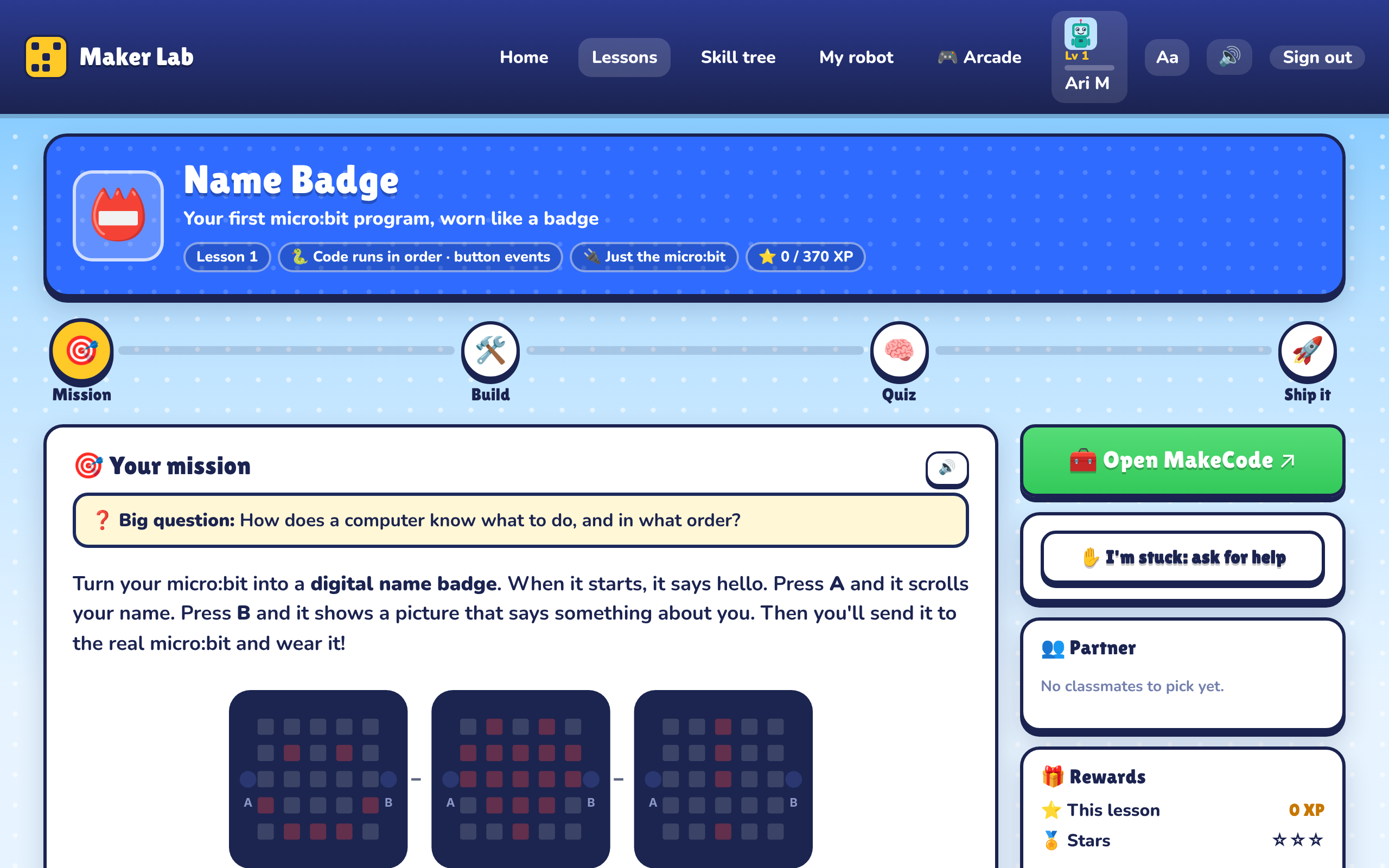
A Maker Lab lesson called Name Badge. A mission explains the project, with pictures of the micro:bit's lights showing a smiley, a heart and an exclamation mark. Beside it are buttons to open the code editor and to ask for help.
In pilot

Maker Lab

Circuits, sensors and code

Students build things that light up, play music, sense and move, on a pocket-sized board. Every lesson is a mission, build steps with wiring pictures, a quiz, and a project to ship. Sixth graders code in blocks; seventh graders move to Python and breadboard circuits.

Grades
6 to 7
Students write
Blocks, then Python
Lessons
23 across two grade tracks
You need
A browser and micro:bit boards

Works with the BBC micro:bit.

Coming next

In development

Block coding

A first programming course

Quests that start with full support and fade it out as students grow. It runs on a block editor the teacher switches on and off, with no games site to wander into. Projects stay compatible with Scratch.

Grades
6
Students write
Blocks
Lessons
22 quests
In development

Cipher City

Cybersecurity by writing code

Students play agents who keep a city safe. They test passwords, spot fake messages, crack and build ciphers, and design defences. Every lock, inbox and network is pretend and lives inside the lesson, so nothing touches a real system.

Grades
6 to 8
Students write
JavaScript
Lessons
30, ten for each grade
In development

AppVenture

Build apps for a phone

Students form small app companies and design, build and test real apps. The platform reads the app file a student turns in and checks it against the lesson. Built on MIT App Inventor.

Grades
7
Students write
Blocks
Lessons
26, with 14 on each student's path
Planned

RoboCode Academy

Program a robot in C++

Students write C++ and run it on a robot in a simulator first, where every lesson checks itself, then on the real robot. Teams compete in a class arena.

Grades
7 to 8
Students write
C++
You need
A browser; a classroom robot kit for the real thing
Planned

Networking

How the internet works

How information finds its way from one device to another: addresses, packets, routers and the web, taught the same way as the other courses.

Grades
6 to 8

Running in your class in three steps

It fits the learning management system you already use, with no roster upload and no integration for your district to approve.

Make a class

Pick a course and make a class in it. You get a class code and a join link. Students pick a name and get a username and passcode. No student email is needed.

Assign it in your LMS

Works with any learning management system: Google Classroom, Canvas, Schoology and others. Post the join link or a lesson link in an assignment, the way you post any other link.

See where everyone is

Every course has a gradebook, a help queue for stuck students, a screen to project for the class, and a report of the steps students found confusing.

Tools built for teachers, by teachers

MS Code Lab started as one teacher's own classroom tools. Each of these exists because it was needed on a school day, and every open course has them.

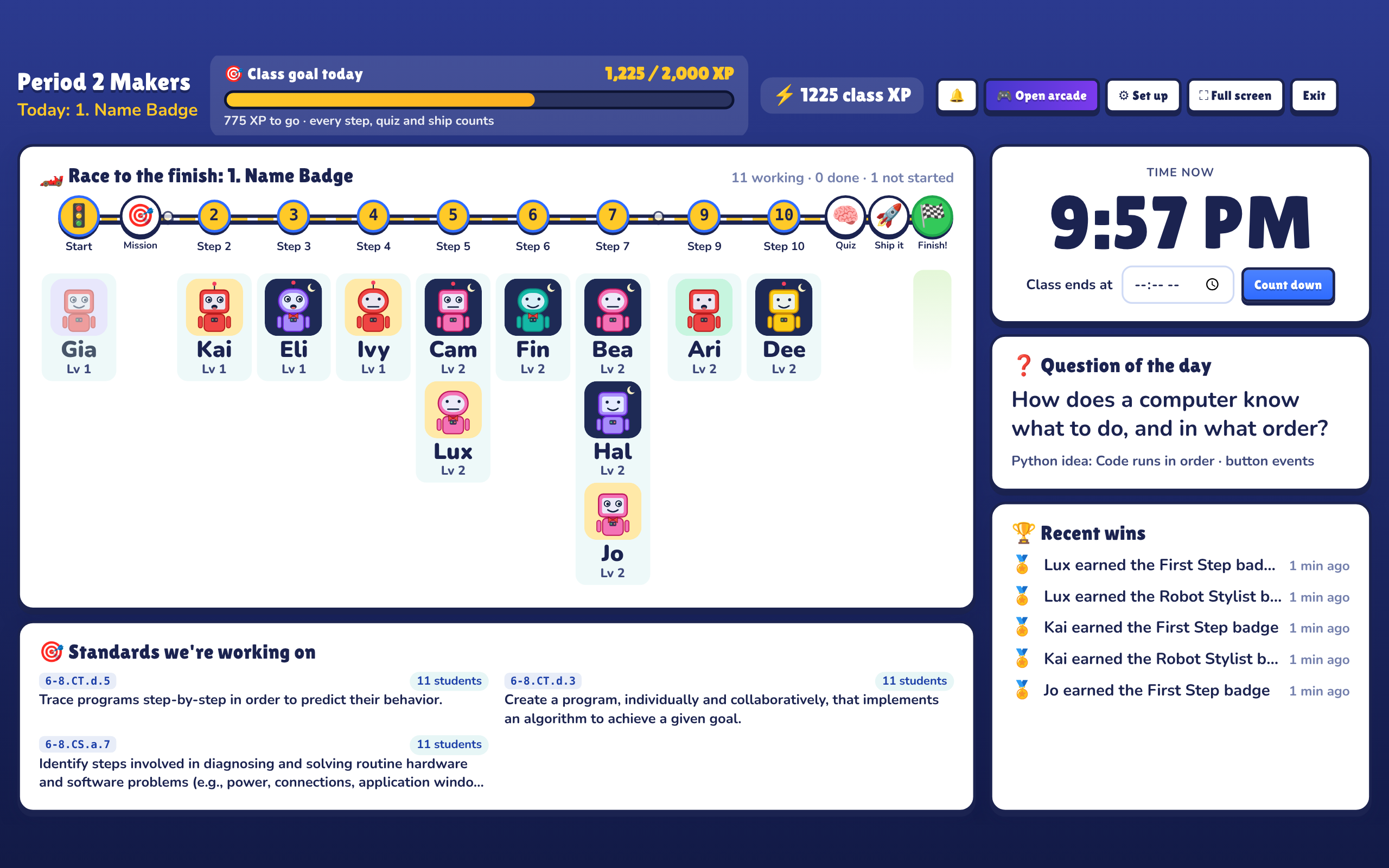
The screen a Maker Lab teacher projects for a class. A race track runs from Start through the lesson's steps to Finish, with each student's robot standing at the step they have reached. Beside it are the class goal, a clock with a countdown, the question of the day, recent wins and the standards the class is working on. No grades are shown.
The screen for the board, from Maker Lab: a race through today's lesson, a class goal, a countdown, the question of the day and recent wins. No grades.

A screen for the board

Project one page and the whole room can see where everyone is, with a timer and a question of the day. It never shows grades.

A help queue

A stuck student taps one button. You see who needs you and which step they are on, without a forest of raised hands.

A gradebook that fills itself in

Progress and checked work land in the gradebook as students go. Open any student's work, see what was checked, and leave feedback.

A report on what confused them

Students flag the steps that lost them and rate each lesson. You get class totals with no names, so you know what to reteach.

Student view

Step into any lesson as a pretend student before you assign it. Nothing you do there shows up in your classes.

Standards, already mapped

Every lesson lists the Massachusetts DLCS standards it covers, quoted word for word, with a coverage view for each class.

Scaffolded to reach every learner

The supports are part of every lesson, not an add-on. A student with an IEP, a student still learning English and a student racing ahead can all work in the same room, on the same lesson.

  • One short instruction at a time. Every step is a single, plainly worded task with a picture or the code beside it. The longer explanation is one tap away for students who want it, and out of the way for those it would overwhelm.
  • Support that fades. Early lessons show exactly what to add. Later ones set a goal and keep a hint or a worked example one tap away, so a student can get help without asking in front of the class.
  • Read aloud on every lesson. Any instruction can be read to the student, which helps students reading below grade level and students learning English.
  • Text each student can adjust. Larger text, wider spacing and easier-to-read fonts, chosen by the student and remembered on their device.
  • Room at both ends. Every lesson has a core every student can finish, and extensions or stretch goals for those who are ready for more.
  • Choice without chaos. Students choose projects and paths by interest, and the class still moves through the same big ideas together.
  • Points never come from grades. Characters, ranks and badges reward progress and helping others, so what classmates see never shows who is behind academically.
  • More languages on the way. The lessons are in English today. Brazilian Portuguese is next, then Spanish.

Private by design

Student privacy decided how this was built, not the other way round.

  • No student email, ever. A student is a display name, a username and a passcode.
  • No ads, no trackers, no analytics. Student pages load nothing from advertising or analytics companies. Even the fonts are served from this site.
  • Each school's data is walled off in the database itself, not only in the application.
  • You can delete it. Removing a student or a class deletes their work with it.
  • No student work is sent to an AI model.

Read exactly what is collected and why

Priced for a teacher, not a district office

Free during the pilot. After that, a monthly price a teacher can pay themselves, with one course or all of them, and a school plan by invoice for departments.

One teacher account works in every course. The demo opens straight away with made-up students, and nothing you do in it is saved or sent anywhere.